merlin-tutorial
intuition-vis-tutorial
A repo for intuition-vis project’s user tutorial
Intuition-vis online live-editor: https://eth-peach-lab.github.io/merlin/
Welcome!
We are happy you are here!
Ready to create a variety of algorithm intution visualizations? Intuition-Vis Editor is a visual production tool that combines programming-language-based (PL) and direct-manipulation (DM). We hope that programming instructors can use it to easily make algorithm intuitions.
Overview
In this section, we will have a overview of the whole system and see how it works. We will use a easy example to show its work flow.
Create an intuition for Fibonacci number
problem description
The Fibonacci numbers, commonly denoted F(n) form a sequence, called the Fibonacci sequence, such that each number is the sum of the two preceding ones, starting from 0 and 1. That is,
F(0) = 0, F(1) = 1
F(n) = F(n - 1) + F(n - 2), for n > 1.
Now let’s make the intution for Fibonacci!
Code myDSL to make templates
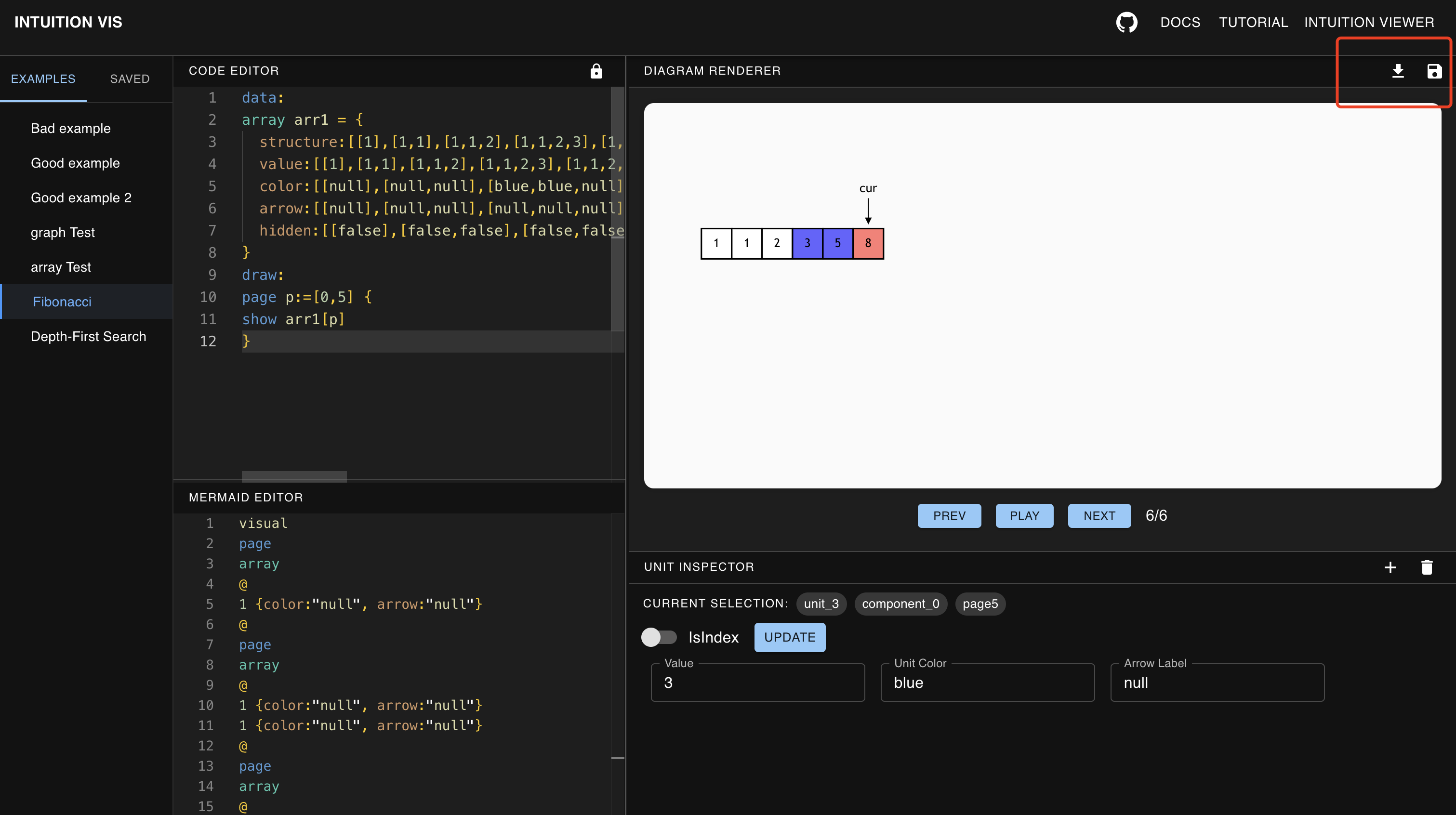
Now, we will make the first page of our intuition visualization. Let’s input some data in Code Editor to describe the data structure of Fabonacci array. We also input some attributes such as color, arrow to describe the style of Fabonacci array.
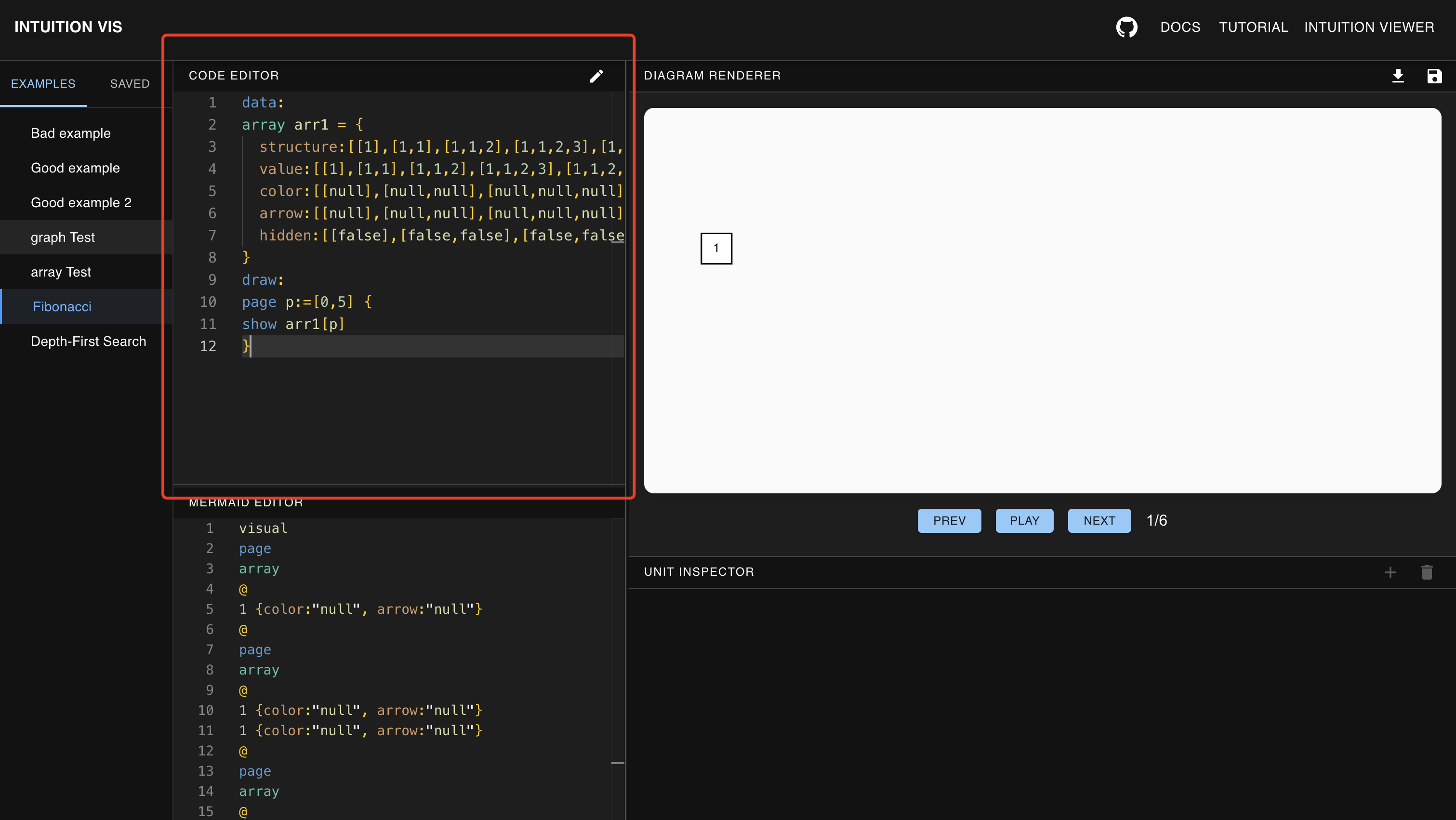
After enter input of Code Editor, the Mermaid Editor below Code Editor will generate mermaid code automatically. Compared to myDSL, Mermaid Code is a low-level domain specific language to directly render SVG image.
Interact with GUI-tool to adjust unit
Good! We just make the first page of our Fibonacci intuition. Now, let’s make it more vivid. Let’s color certain units on it to show how a new Fibonacci number is produced. The 4th Fibonacci number 3 is produced by 3 = 1 + 2. Let’s color it and add an arrow to hightlight 3 is just produced.
Click on unit 3, the GUI tool will appear. Let’s change the unit color and arrow label with red and current, then click update.
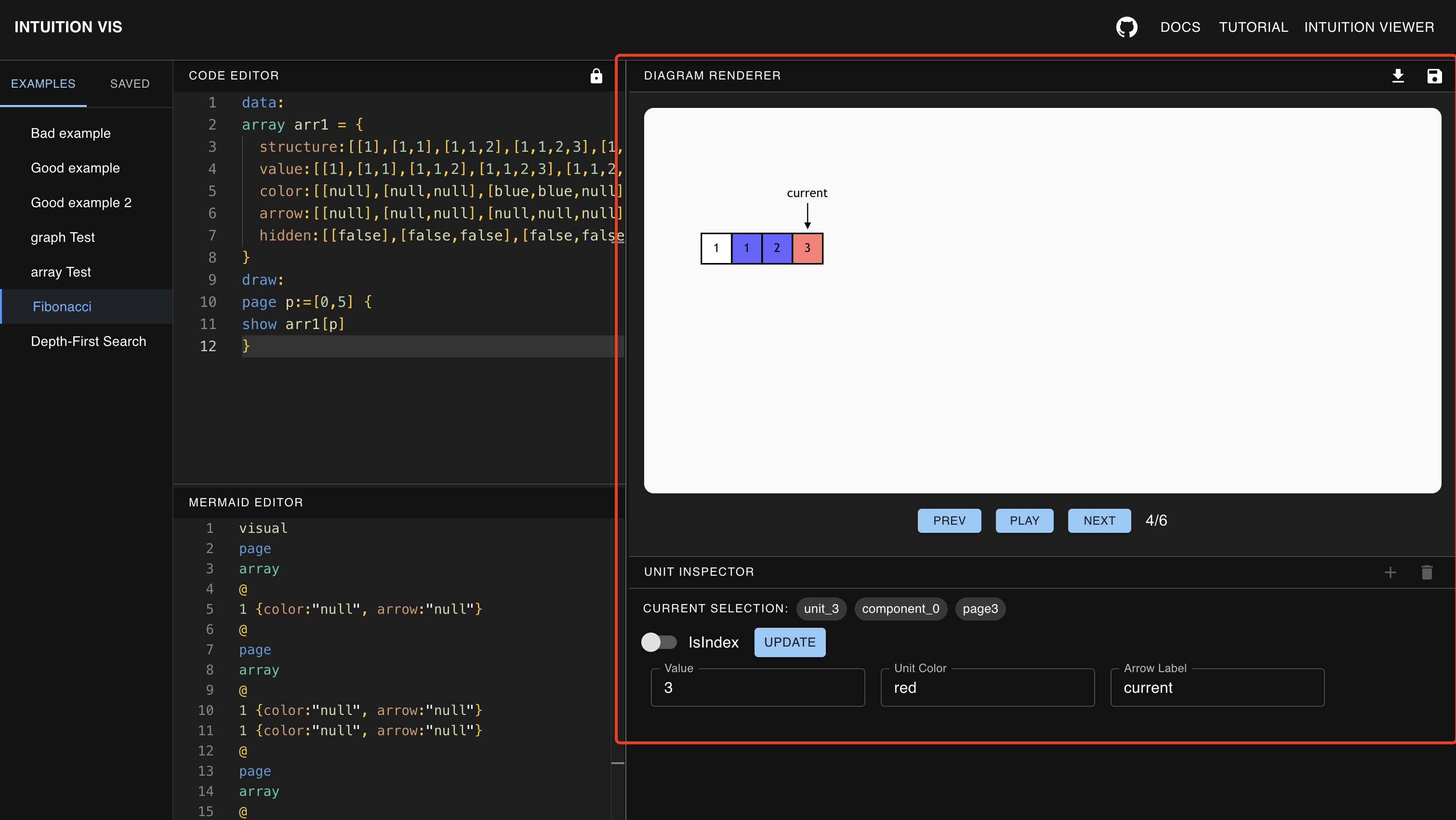
Now the unit 3 is updated as our input! Let’s also update 1 and 2 likewise.
Add and delete page
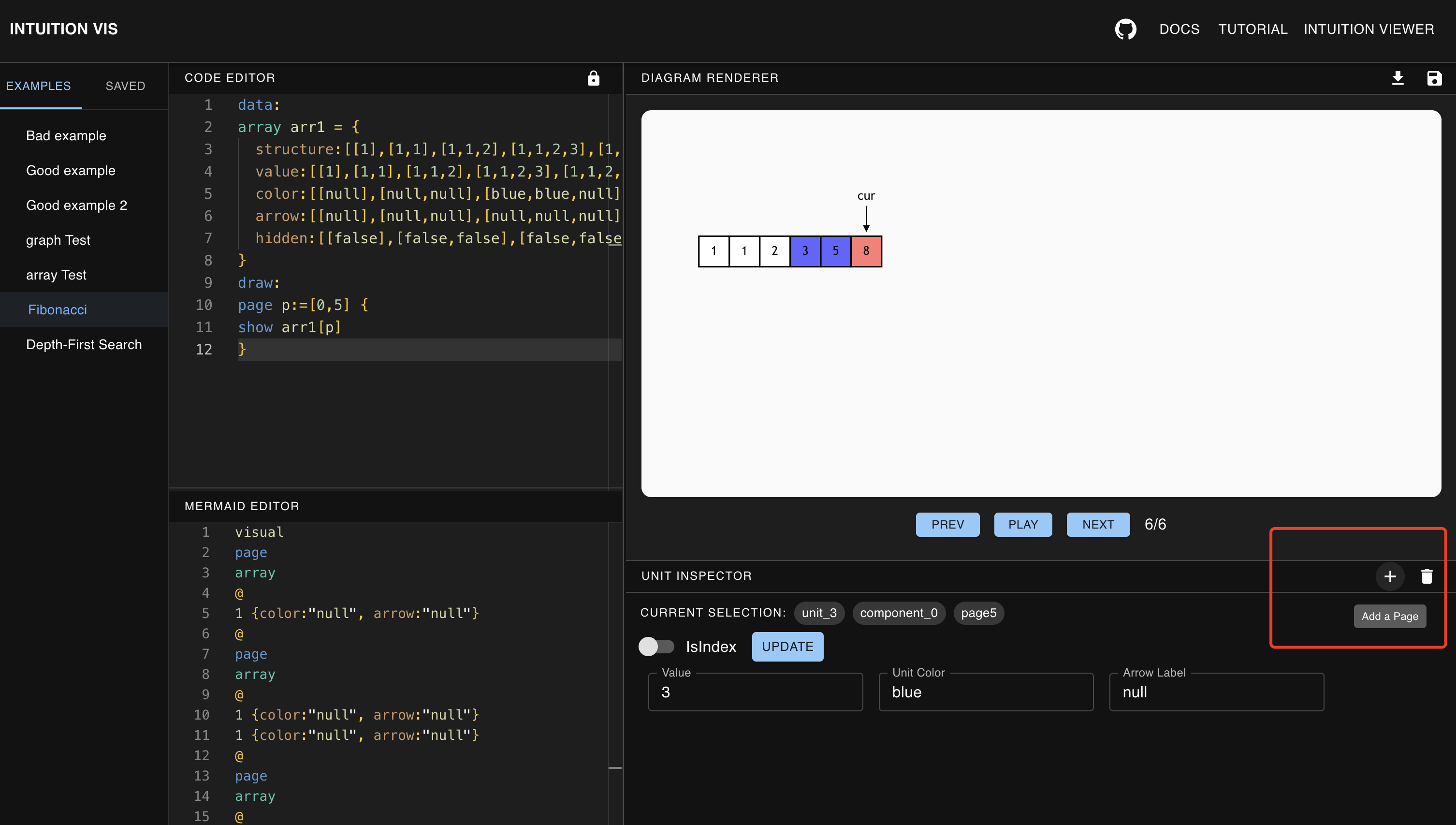
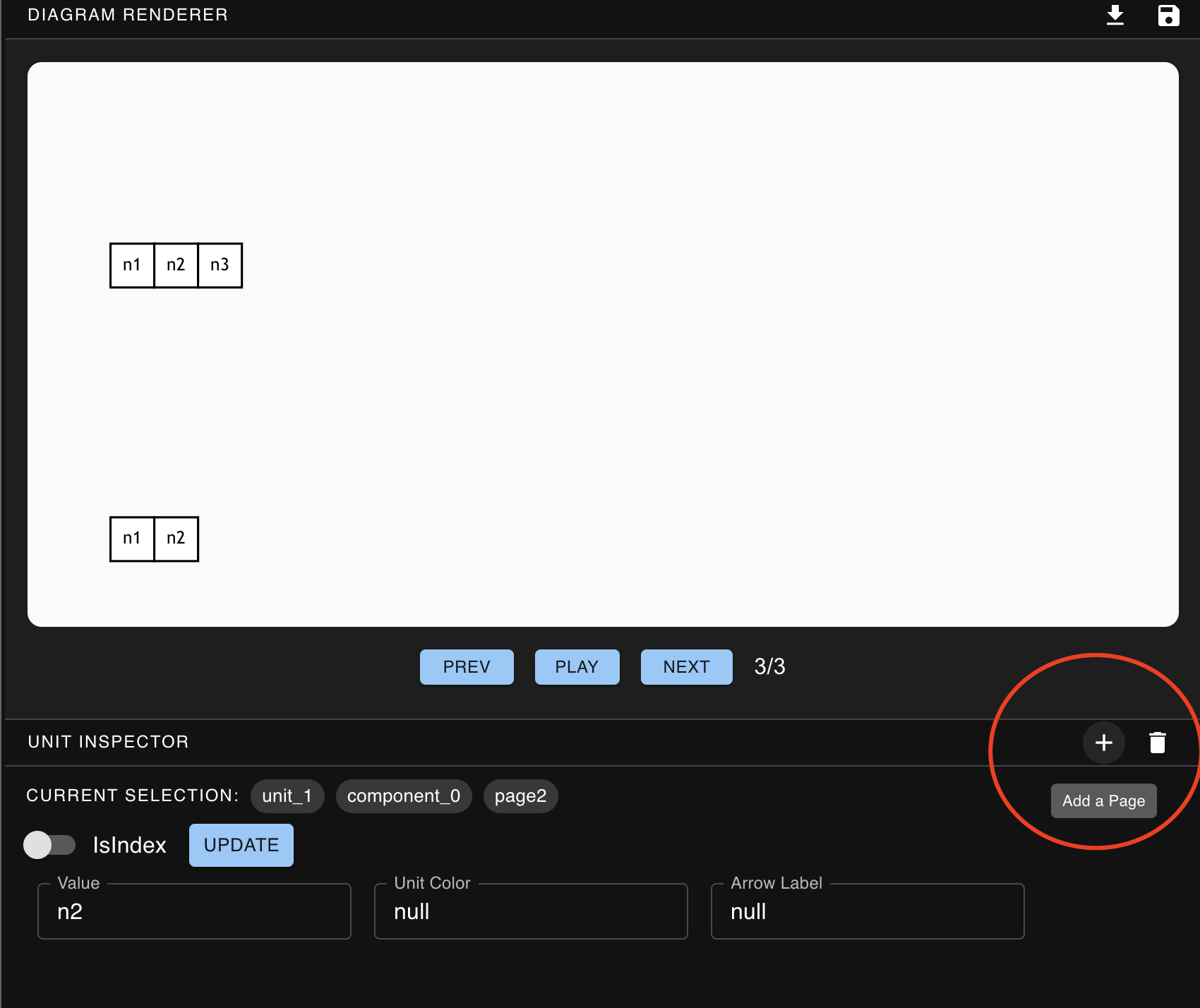
Great! We have 5 pages now, and we want to add a new page to generate the next Fabonacci number. Let’s click Add a page button on the right-top of GUI-tool to copy the last page.
Modify mermaid code when necessary
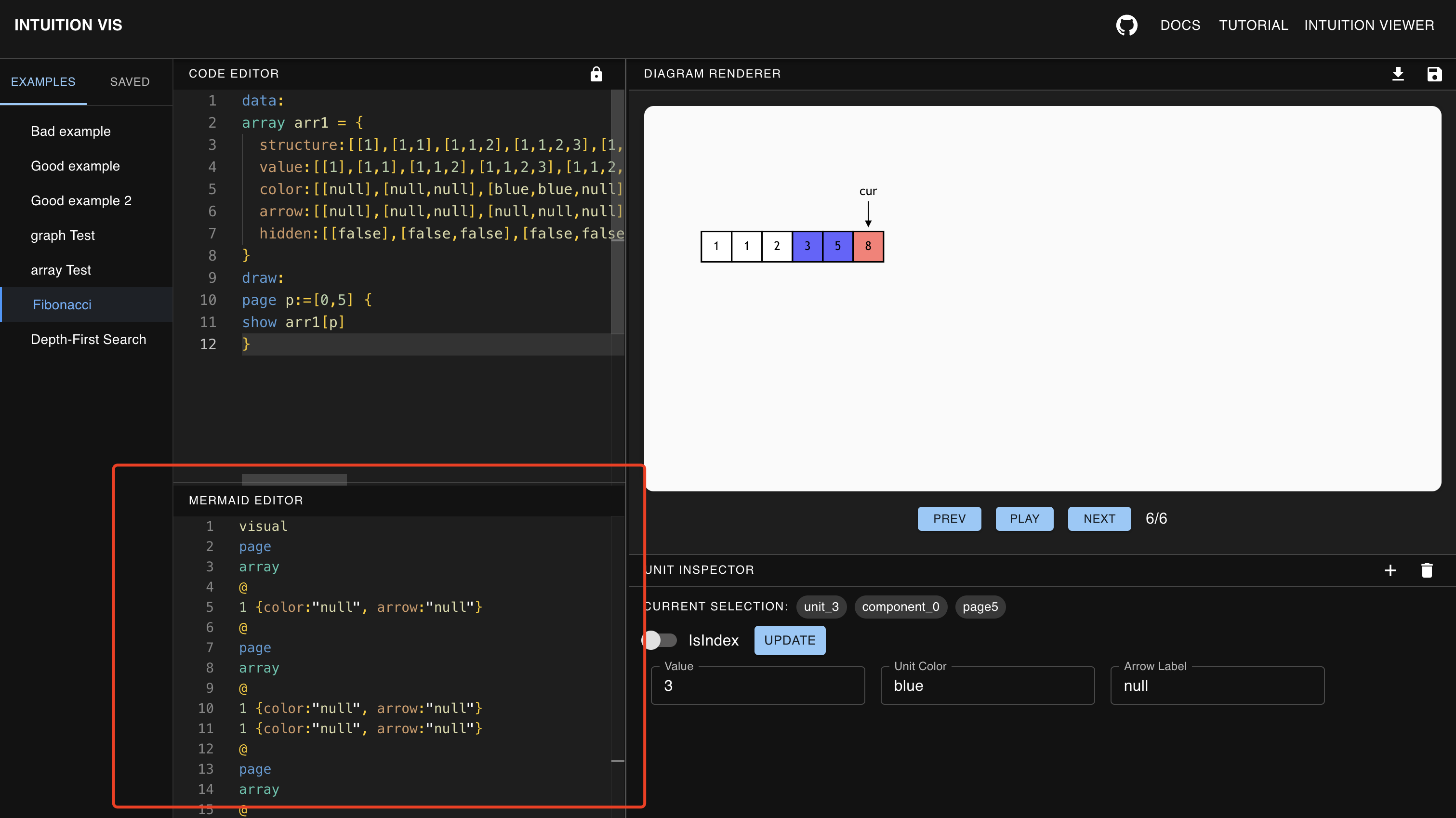
Mermaid code is generated from myDSL automatically. But you can also edit it to make more detailed style-control when necessary.
Save your output
Great! Now we have a nice Fibonacci intuion visualization. Let’s click save or export button to save the svg animation for further use.
myDSL
In this section, we will introduce myDSL grammar and show how to use myDSL to generate intuition visulization.
Basic Concepts
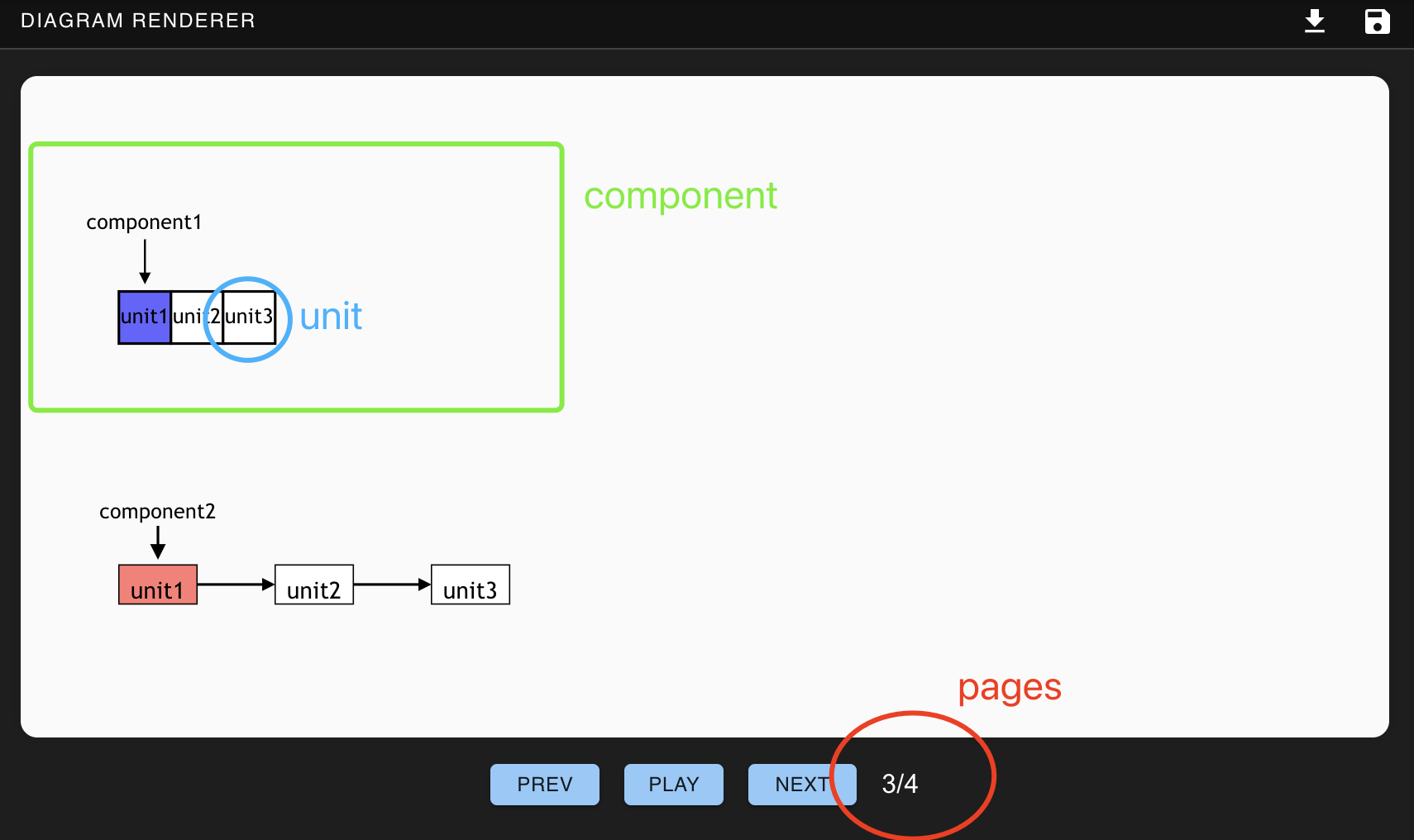
There are 3 basic concepts: unit, component and page. Unit is the smallest part that can be manipulated, such as each node in a tree diagram. Units form components. Currently, our editor supports 6 types of components: array, linkedlist, tree, stack, matrix and graph. Several components make up a page, and a complete intuition visualization usually has multiple pages.
myDSL Grammar
Fabonacci Array Examble
data:
array arr1 = {
  structure:[[1],[1,1],[1,1,2],[1,1,2,3],[1,1,2,3,5],[1,1,2,3,5,8]]
  value:[[1],[1,1],[1,1,2],[1,1,2,3],[1,1,2,3]]
  color:[[null],[null,null],[null,null,null],[null,null,null,null],[null,null,null,null]]
  arrow:[[null],[null,null],[null,null,null],[null,null,null,null],[null,null,null,null]]
  hidden:[[false],[false,false],[false,false,false],[false,false,false,false],[false,false,false,false]]
}
draw:
page p:=[0,5] {
show arr1[p]
}
In data part, user describe each component’s structure and other attributes fo several pages. For instance, [1] is the value in page 1, [1,1] is the value in page 2.
In draw part, user choose to render which component they describe in data part.
Grammar of Different Components
Value Type
ID, Number and Boolean type are 3 type accepted as input. They are defined by:
// only consists of numeric digits
Number -> [0-9]:+

// must start with alphabet, consists of alphabet and numeric digits
ID -> [a-zA-Z0-9\/\\<>#@$&|]:+

// be false or true
Boolean -> false || true
Array
array array_component_name = {
structure:[[ID || Number]] //required
value:[[ID]] // optional, when ther is no value, will copy strucrure value
color:[[ID]] // optional
arrow:[[ID]] // optional
hidden:[[Boolean]] // optional
}
Here is an example of array component:
array arr1 = {
  structure:[[1],[1,1],[1,1,2]]
  value:[[1],[1,1]]
  color:[[null]]
  arrow:[[null]]
}
Stack
stack stack_component_name = {
structure:[[ID || Number]] //required
value:[[ID]] // optional, when ther is no value, will copy strucrure value
color:[[ID]] // optional
arrow:[[ID]] // optional
hidden:[[Boolean]] // optional
}
Here is an example of stack component:
stack stk1 = {
  structure:[[1],[1,1],[1,1,2]]
  value:[[1],[1,1]]
}
Tree
tree tree_component_name = {
structure:[[ID]] //required
value:[[ID]] // optional, when ther is no value, will copy strucrure value
color:[[ID]] // optional
arrow:[[ID]] // optional
hidden:[[Boolean]] // optional
}
Here is an example of tree component:
tree tr1 = {
  structure:[[n1],[n1,n2],[n1,n2,n3]]
  value:[[1],[1,2],[1,2,3]]
  color:[[null]]
  arrow:[[null]]
}
Linkedlist
linkedlist linkedlist_component_name = {
structure:[[ID]] //required
value:[[ID]] // optional, when ther is no value, will copy strucrure value
color:[[ID]] // optional
arrow:[[ID]] // optional
hidden:[[Boolean]] // optional
}
Here is an example of linkedlist component:
linkedlist li1 = {
  structure:[[n1],[n1,n2],[n1,n2,n3]]
  value:[[1],[1,2],[1,2,3]]
  color:[[null]]
  arrow:[[null]]
}
Matrix
linkedlist linkedlist_component_name = {
structure:[[[ID || Number]]] //required
value:[[[ID]]] // optional, when ther is no value, will copy strucrure value
color:[[[ID]]] // optional
arrow:[[[ID]]] // optional
hidden:[[[Boolean]]] // optional
}
Here is an example of matrix component:
matrix mr1 = {
  structure:[[[1,2],[3,4]],[[1,2,3],[3,4]]]
}
Graph
graph graph_component_name = {
id:[[ID]] //required
edge:[[(ID,ID)]] // required
color:[[ID]] // optional
arrow:[[ID]] // optional
hidden:[[ID]] // optional
}
Here is an example of graph component:
graph dfs = {
  id:[[n1,n2,n3,n4,n5,n6,n7,n8]]
  edge:[[(n1,n2),(n4,n8)]]
  value:[[n1,n2,n3,n4,n5,n6,n7,n8]]
  color:[[red,null,null,null,null,null,null,null]]
}
Notice
nullis a reserved key word forarrowattribute, it means no arrow on this unit.emptyis a reserved key word forarrowattribute, it means a arrow without label.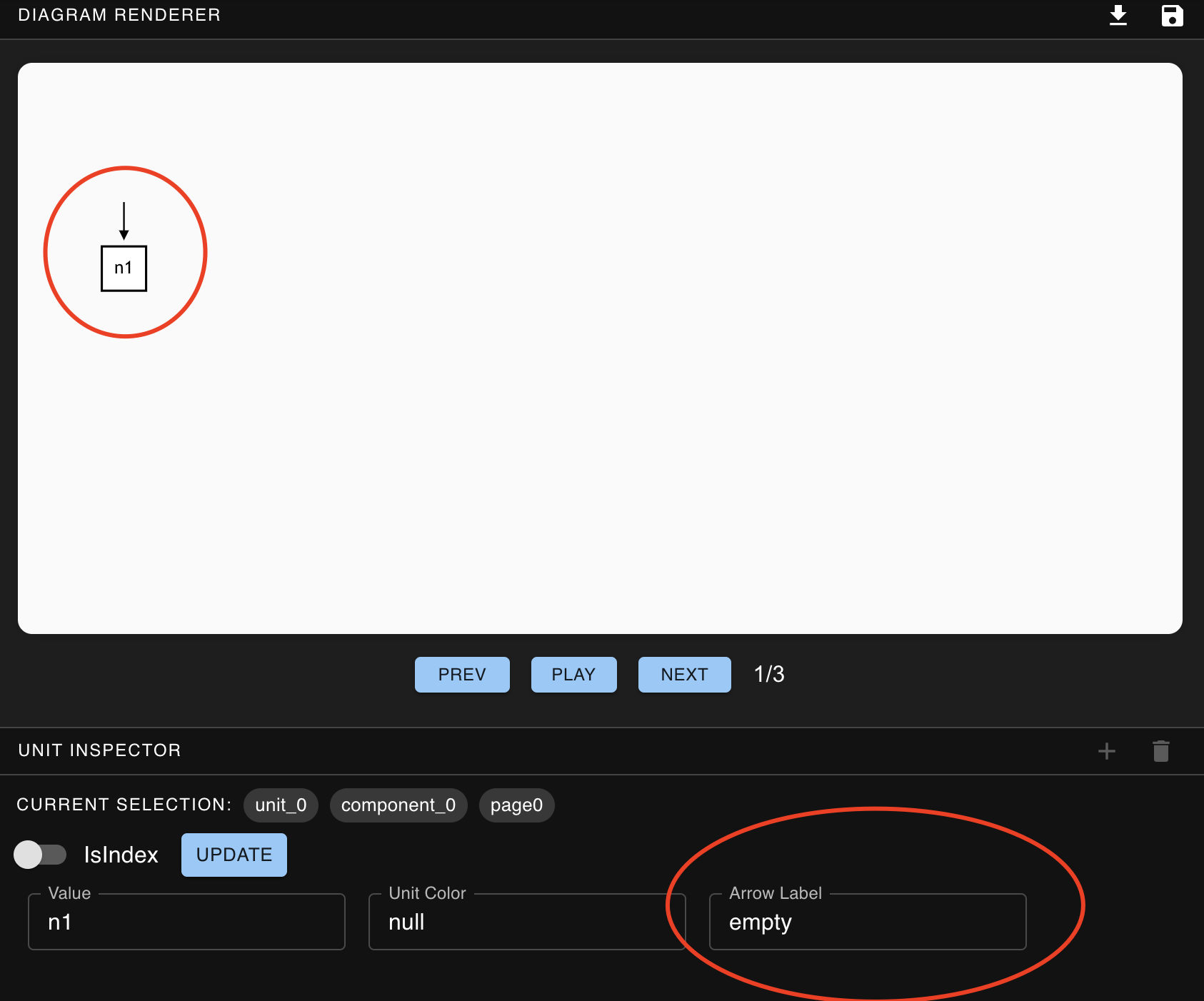
Grammar of Draw
For each page, user need to explicitely decide which component to be rendered on this page.
First, user needs to choose page range by page page_index := [Number1, Number2]. The range starts with 0 and includes the start and end.
Then, user needs to choose to render which component using show component_name[page_index]. Here user can also use expression with page_index to choose component.
page page_index := [Number, Number] {
show component_name[page_index]
}
This is a example of full draw part:
draw:
page p = [0,1] {
show component_name_1[p + 1]
show component_name_2[p]
}
page i = [2,3] {
show component_name_1[i - 1]
show component_name_2[i]
}
Notice
For page_index expression, only simple ones such as p + 2 , p - 1 is supported now. Always keep the coefficient before page_index as 1. Such as 1 - p , 2 * p are not supported so far.
GUI-tool
Besides myDSL control flow, our Intuition-editor also enable user to use GUI-tool doing direct operation.
Unit Update
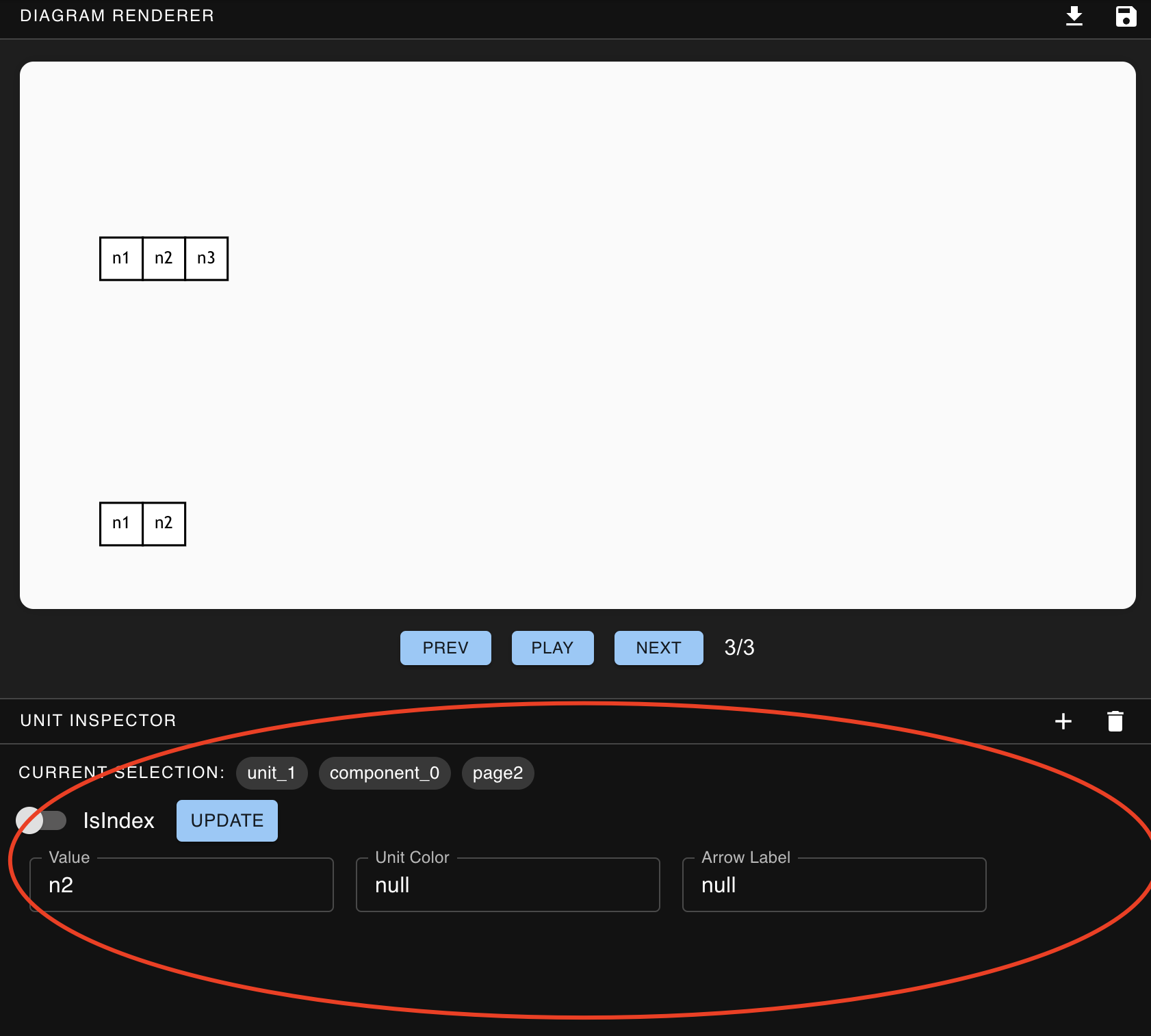
Click on the unit generated by myDSL and the GUI-tool will locate to this unit direcltly. Input new attribute value and click Update button.
### Add/Delete Page
Go to the end of current intuition visualization and click on add a page to add copy current page and add it to the end.
delete page can delete the last page of current intuition visualization.
## Tasks ### 1. LCA in a tree Given a binary tree, find the lowest common ancestor (LCA) of two given nodes in the tree.
According to the definition of LCA on Wikipedia: “The lowest common ancestor is defined between two nodes p and q as the lowest node in T that has both p and q as descendants (where we allow a node to be a descendant of itself).”
example:
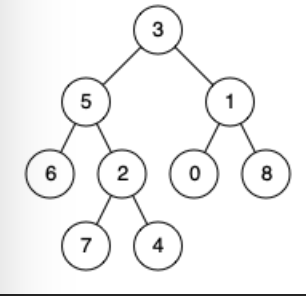
 Input: root = [3,5,1,6,2,0,8,null,null,7,4], p = 5, q = 4
 Output: 5
 Explanation: The LCA of nodes 5 and 4 is 5, since a node can be a descendant of itself according to the LCA definition.
### 2. DFS
Given the first few pages, please follow the pattern and draw the next 5 pages of the dfs.
### 3. Numbers of Islands
Given an 4 * 4 matrix which represents a map of 1s (land) and 0s (water), return the number of islands.
An island is surrounded by water and is formed by connecting adjacent lands horizontally or vertically. You may assume all four edges of the grid are all surrounded by water.
Example:
 Input: grid = [
   ["1","1","0","0","0"],
   ["1","1","0","0","0"],
   ["0","0","1","0","0"],
   ["0","0","0","1","1"]
 ]
 Output: 3
### 4. Valid Brackets Given a string s containing just the characters ‘(‘, ‘)’, ‘{‘, ‘}’, ‘[’ and ‘]’, determine if the input string is valid.
An input string is valid if:
- Open brackets must be closed by the same type of brackets.
- Open brackets must be closed in the correct order.
- Every close bracket has a corresponding open bracket of the same type.
 Example 1:

 Input: s = "()"

 Output: true

 Example 2:

 Input: s = "()[]{}"

 Output: true

 Example 3:

 Input: s = "(]"

 Output: false

 Example 4:

 Input: s = "([])"

 Output: true