GUI Reference
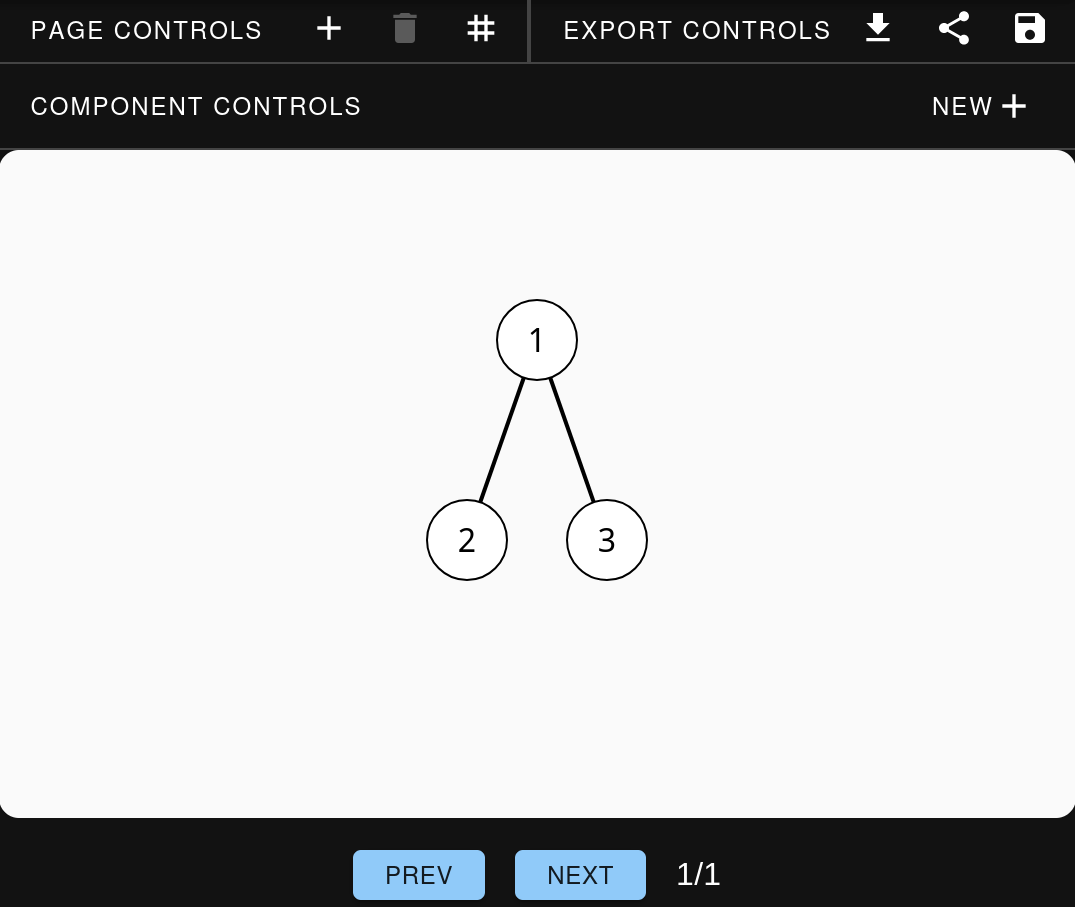
This is a complete reference of all GUI controls available for creating and manipulating Merlin data structures and pages. The controls are organized by category and indicate which data structures support them.
Page Controls
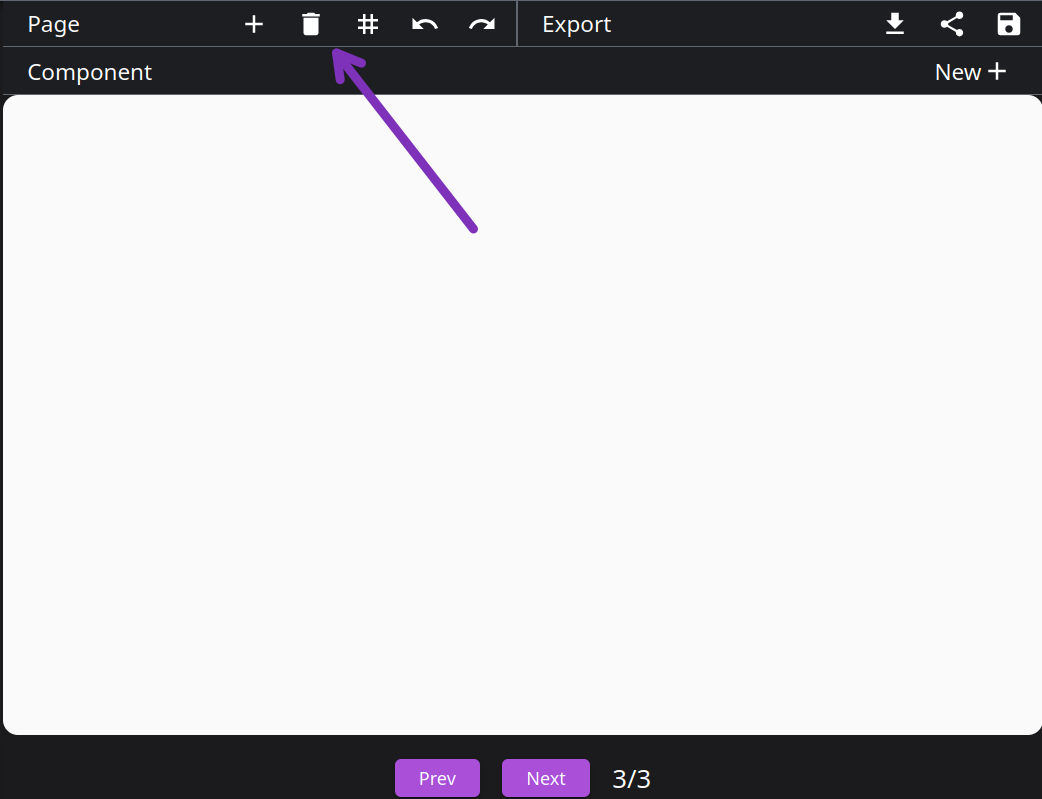
Add Page
Creates a new visualization step.
Remove Page
Removes the visualization step that is currently shown.
Set Page Grid
Set a grid. A grid defines different locations where a component can be placed. After a grid is created a component can be positioned within it. See more: Positioning
Component Controls
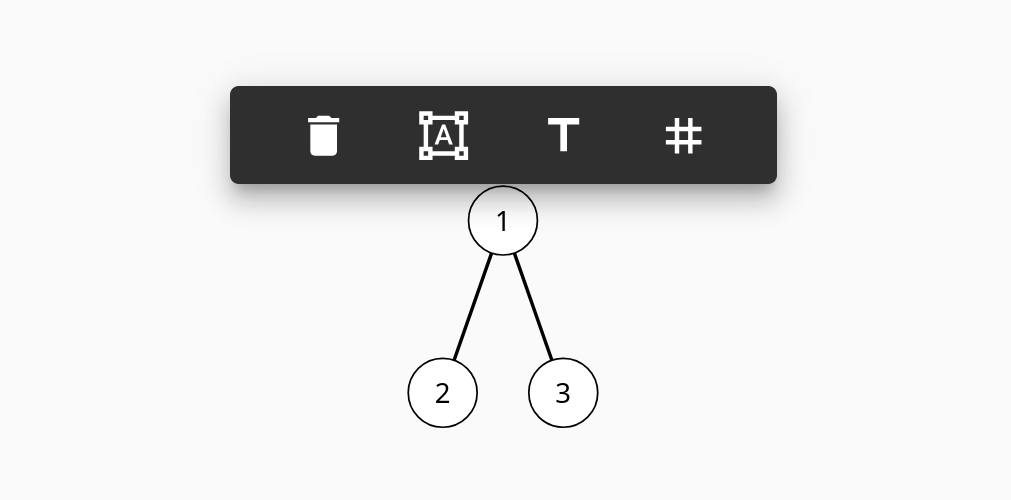
You can open the component controls by double-clicking on any unit.
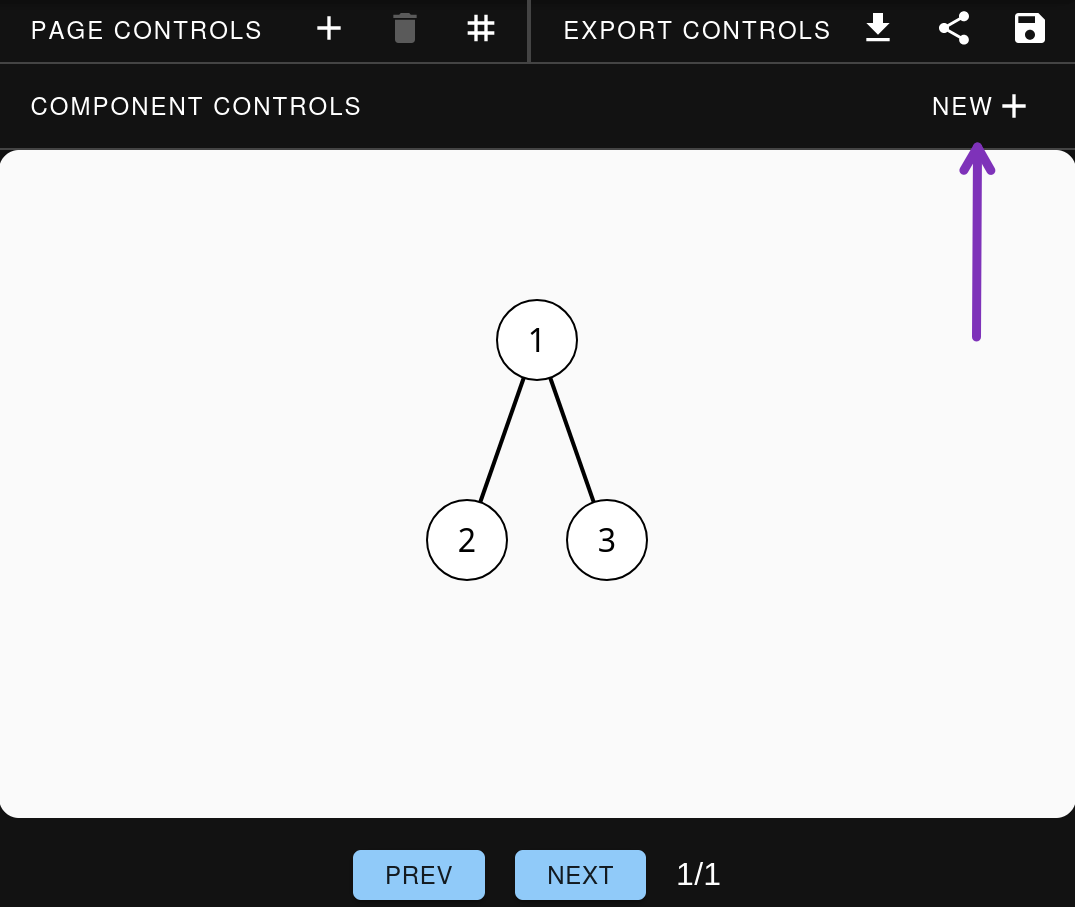
Create Component
Opens a dropdown that allows you to choose which type of component you would like to create. Once chosen, a separate menu will popup where you can specify the values of the component (for example, nodes and edges for graphs or values for arrays).
Here is a list of what can/must be specified to create each component:
Array:
List of values (can be null)
Example: 1, null, 3
Matrix:
List of rows and values for those rows (can be null)
Example: 1, 2, null; 4, 5, 6
Graph:
List of edges (where nodes cannot be null and must be unique)
Example: a-b, b-c, c-d, d-b
List of values for the nodes (optional)
Example: a:node3, b:node2, c:special node
Tree:
List of parent-children relations (where parents and children cannot be null and must be unique)
Example: a-b, b-c, a-d
List of values for nodes (optional)
Example: a:node3, b:node2, c:special node
Stack:
List of values (can be null)
Example: 1, null, 3
LinkedList:
List of values (can be null)
Example: 1, null, 3
Text:
Any string
Example: "hello!"
Supported by: All structures
Remove Component
Removes the component from the current page and all future pages. Important: This can only be undone by recreating the component using the GUI or by using the code editor.
Supported by: Array, Matrix, Graph, Tree, Stack, LinkedList
Structure & Styling
Set the values, color and arrows of multiple units. Add and/or remove multiple units and/or edges.
Array:
Set the values, color and arrows of multiple units. Adding and/or removing values adds and/or removes units.
Matrix:
Set the values, color and arrows of multiple units. Add and/or remove rows and columns by adding and/or removing values.
Graph:
Set the values, color and arrows of multiple nodes. Add and/or remove nodes and edges.
Tree:
Set the values, color and arrows of multiple nodes. Add and/or remove nodes and edges.
Stack:
Set the values, color and arrows of multiple units. Adding or removing values adds and/or removes units.
LinkedList:
Set the values, color and arrows of multiple units. Adding or removing values adds and/or removes units.
Supported by: Array, Matrix, Graph, Tree, Stack, LinkedList
Text
Add text above, below, to the left or to the right of the component. To remove the text, simply remove it from the input field.
Supported by: Array, Matrix, Graph, Tree, Stack, LinkedList
Position
Position the component within the grid. This only works if a grid has been defined for the current page. To define a grid, see the
Supported by: Array, Matrix, Graph, Tree, Stack, LinkedList
See more: Positioning
Unit Controls
You can open the unit controls by clicking on any unit.
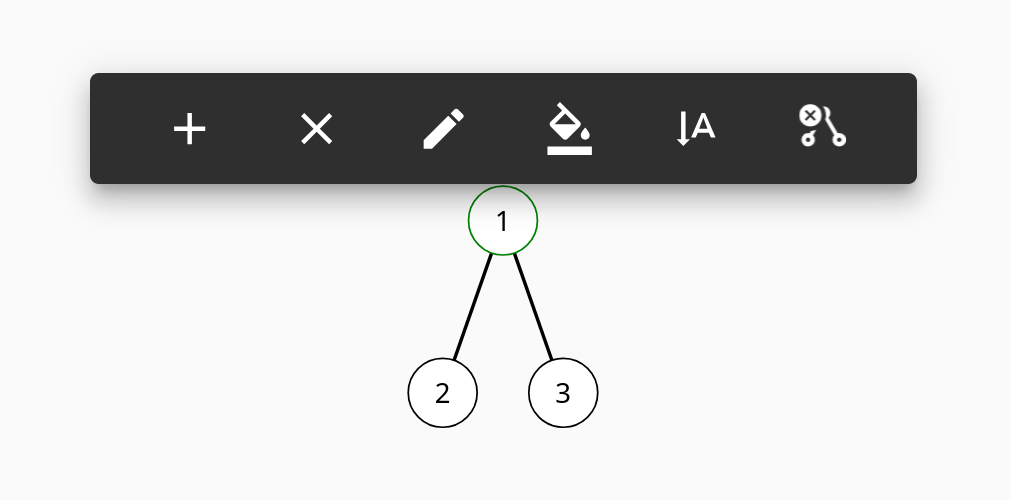
Edit Value
Change the value of the node. If the field is left empty, the value will be set to null.
Supported by: Array, Stack, Matrix, Graph, Tree, LinkedList
Edit Color
Sets the color at a specific index.
Supported by: Array, Matrix, Graph, Tree, Stack, LinkedList
Edit Label
Sets the arrow/label at a specific index.
Supported by: Array, Matrix, Graph, Tree, Stack, LinkedList
Add Unit
Add a unit.
Array:
Add a unit with that value after the current unit.
Graph:
Add a node anywhere in the graph.
Tree:
Add a node as a child of the current node.
Stack:
Add a unit with that value above the current unit.
LinkedList:
Add a unit with that value after the current unit.
Supported by: Array, Graph, Stack, LinkedList, Tree
Add Row
Add a row below the current row.
Supported by: Matrix
Add Column
Add a row to the right of the current row.
Supported by: Matrix
Remove Unit
Removes the current unit. For graph nodes, all edges with this node will also be deleted.
Supported by: Array, Graph, Tree, Stack, LinkedList
Remove Row
Removes the row that contains the current unit.
Supported by: Matrix
Remove Column
Removes the column that contains the current unit.
Supported by: Matrix
Remove Subtree
Removes the current unit and all children of this unit.
Supported by: Tree